Choose which apps use the VPN
Not every app needs the VPN. A banking app may refuse to open from a foreign address, an online game wants the shortest path, and a local app is often faster without a detour. The Hiddify app lets you decide, app by app. There are two ways to use it:


How you choose the apps depends on the device: on Android you tick them in a list; on a computer you write the name of the program in a routing rule.
On Android: tick the apps in a list
- Open Settings → Routing and turn on App-based routing.
- Pick the mode:
- Bypass: the apps you choose do not use the VPN. Everything else does.
- Proxy only: only the apps you choose use the VPN. Everything else goes direct.
-
Tap Choose apps and tick the apps. Hide system apps keeps the list short, and the search button finds an app by its name.
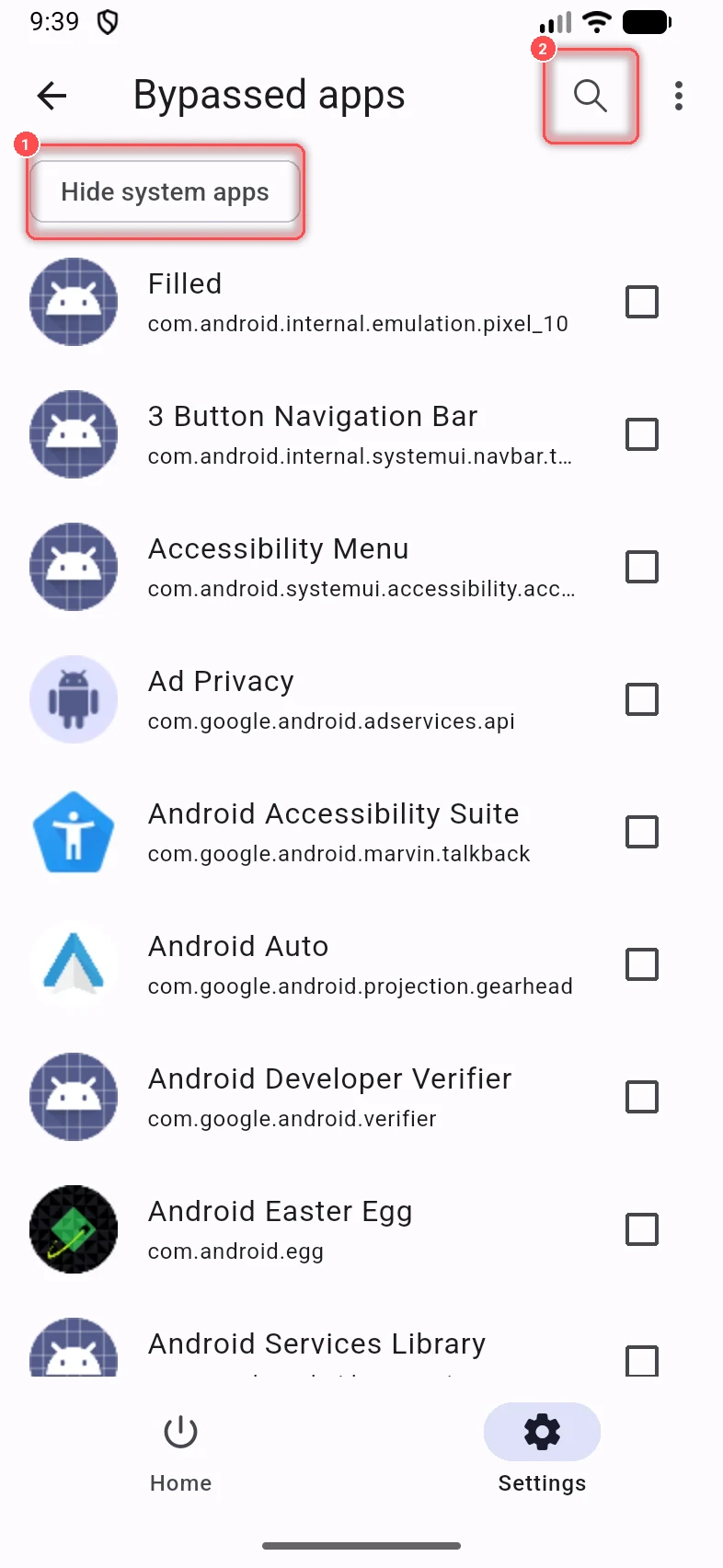
-
Go back. The choice is saved at once. If an app still behaves as before, disconnect and connect again.
This works in VPN mode, because Android itself sends each app's traffic into the VPN or around it.
The ready list for your region
You don't have to find every local app yourself. Turn on Auto selection based on (your region) and the app adds a ready list of apps for your region to the list of the current mode. With Bypass, these are apps that usually need to stay outside the VPN, such as local banking apps.
- The apps added this way carry an Auto tag, so you can tell them from your own.
- The list keeps itself up to date. The refresh button next to it (Update now) updates it at once.
- If you remove an app by hand, it stays removed, even when the list is updated.
- The region comes from Region at the top of the Routing page.
Good to know
- An app outside the VPN does not follow any routing rule: the app list shows Outside the VPN · rule won't apply next to it.
- The ⋮ menu of the app list can import or export your selection (to move it to another phone) or clear it.
- For more control, a routing rule can also pick an app by its Package name, for example
org.telegram.messenger, and send it Direct, through the Proxy, or Block it. The package name is the part afterid=in the app's Google Play link.
On a computer: a rule with the program's name
On Windows, macOS and Linux there is no list to tick. Instead you make a routing rule that recognizes the program by the name of its file. This works only in VPN mode: the rule editor shows Available only in TUN mode next to these fields.
- Open Settings → Routing and click + (Add rule).
- Set Outbound if match:
- Direct keeps the program outside the VPN (for example a game or a local banking program).
- Proxy sends it through the VPN.
- Block cuts its internet completely.
- Click Process names, then +, type the program's file name and click OK. Add as many names as you need, one per line.
- Click the ✓ at the top to save the rule.
For example, a rule that keeps Steam (and its games) outside the VPN:
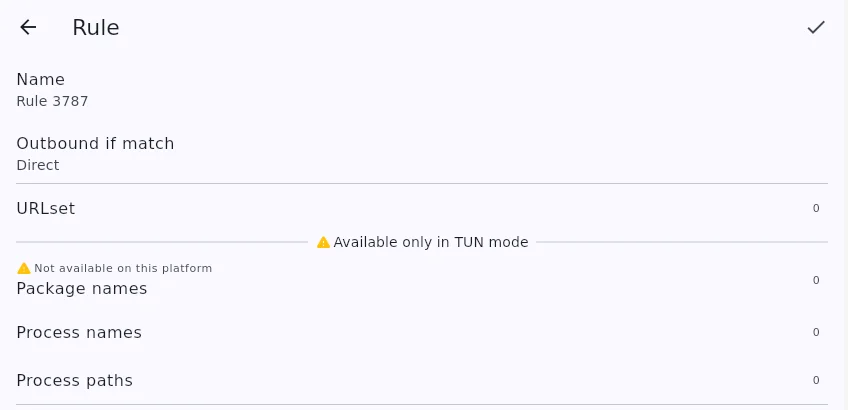
How do I find the program's name?
chrome.exe or Telegram.exe.Telegram.ps -e in a terminal. The name is the program's own, for example firefox.On Windows the name always ends in .exe (the rule also accepts .bat, .cmd and .com).
Installers and Microsoft Store apps
- Type the program that runs, not the installer. An
.msifile, or an.exeyou downloaded to install something, only installs it; it is not the program that uses the internet. - Microsoft Store apps work the same way: open the app, then find its name in Task Manager → Go to details. Or open PowerShell and run
tasklist /apps: every running Store app is listed with its.exename in the first column. - Some apps run more than one program. Add every name you see for that app.
- Some Store apps download in the background through Windows itself (for example through
svchost.exe). That part does not carry the app's name, so the rule does not catch it.
Process names or Process paths?
- Process names (
chrome.exe) is the right choice almost always. - Process paths takes the full path, for example
C:\Program Files\Google\Chrome\Application\chrome.exe. Use it only when two different programs have the same name. - Don't use Process paths for Microsoft Store apps: they live in
C:\Program Files\WindowsApps\…, in a folder whose name has the version number in it, so the path changes with every update.