How to connect to your server via SSH
SSH is a secure way to open a command line on a remote server from your own computer. You need it to install Hiddify Manager, and to fix the panel when you cannot reach it from the web (for example, if you lost your admin link).
What you need
- Your server's IP address (four numbers separated by dots, for example
1.1.1.1). - The username and password (or SSH key) from your server provider. The username is usually
root. - An SSH program on your computer. Windows 10 and 11, macOS and Linux already include one.
Windows only: install SSH if it is missing
Windows 10 and 11 usually include SSH already. If the ssh command is not found:
-
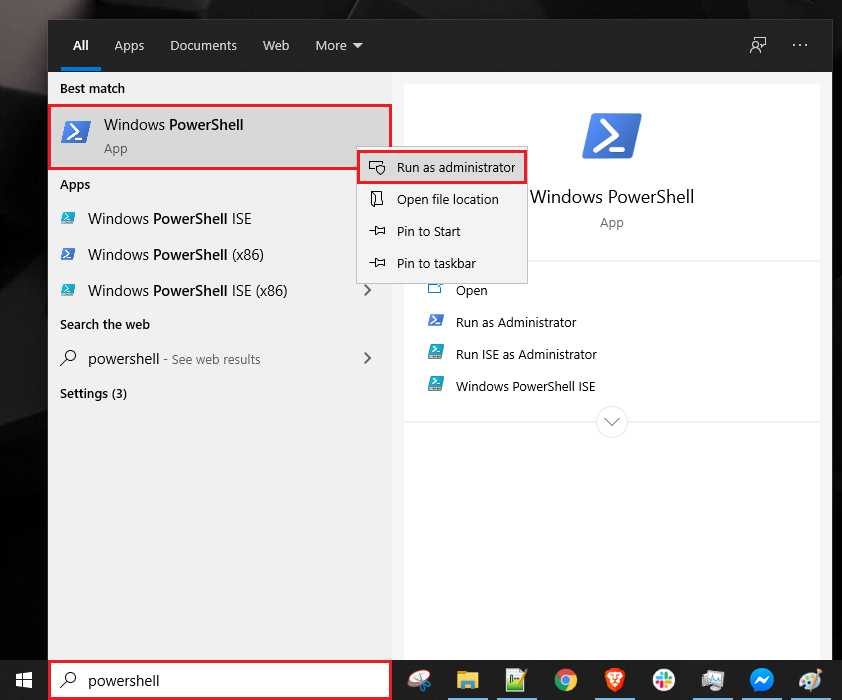
Right-click PowerShell and choose Run as Administrator.
-
Run this command:
-
You should see a result like this:
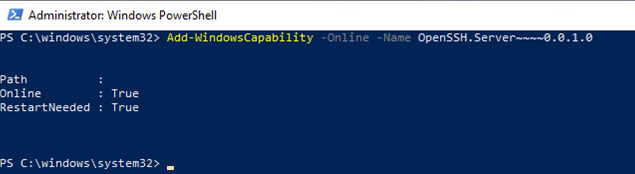
SSH is now installed.
Connect to the server
- Open a terminal on your computer:
- Windows: PowerShell
- macOS: Terminal
- Linux: Terminal
-
Type this command, replacing
<IP_Address>with your server's IP address, and press Enter:For example, if your server's IP is
1.1.1.1: -
The first time you connect, SSH asks if you trust the server (
Are you sure you want to continue connecting). Typeyesand press Enter. - Enter your password and press Enter. The password does not appear on the screen while you type; this is normal.
When you are connected, the prompt changes to something like root@your-server:~#. You can now run commands on the server.
If you see Connection timed out or Connection refused, check the IP address and port, and make sure the server is running.
If you changed the SSH port
SSH uses port 22 by default. If you changed it, add -p and your port number:
For example, if your IP is 1.1.1.1 and your port is 2222:
Useful commands after you connect
If Hiddify Manager is already installed, these commands help you manage it:
hiddify: opens the management menu.hiddify admin: shows the admin panel links.hiddify status: shows the status of the services.hiddify restart: restarts the services.
For example, to see the admin links:
To install Hiddify Manager, follow the main installation guide.