The Hiddify app on Android TV: add a profile from your phone
Typing a long subscription link with a TV remote is slow. Since version 5.9, the Hiddify app on Android TV can take the link from your phone instead: scan a code on the TV, paste the link on your phone, and import it on the TV.
Written for Hiddify app 5.9
This page is for Hiddify app 5.9 (5.9.6) on Android TV and Google TV. The TV uses the Android app: see How to install the Hiddify app. On the TV the menu is a sidebar on the left: Home, Settings, Logs, About (and Profiles once you have added a profile).
Add a profile from your phone
You need: the TV and your phone on the same Wi-Fi network, and your subscription link on the phone.
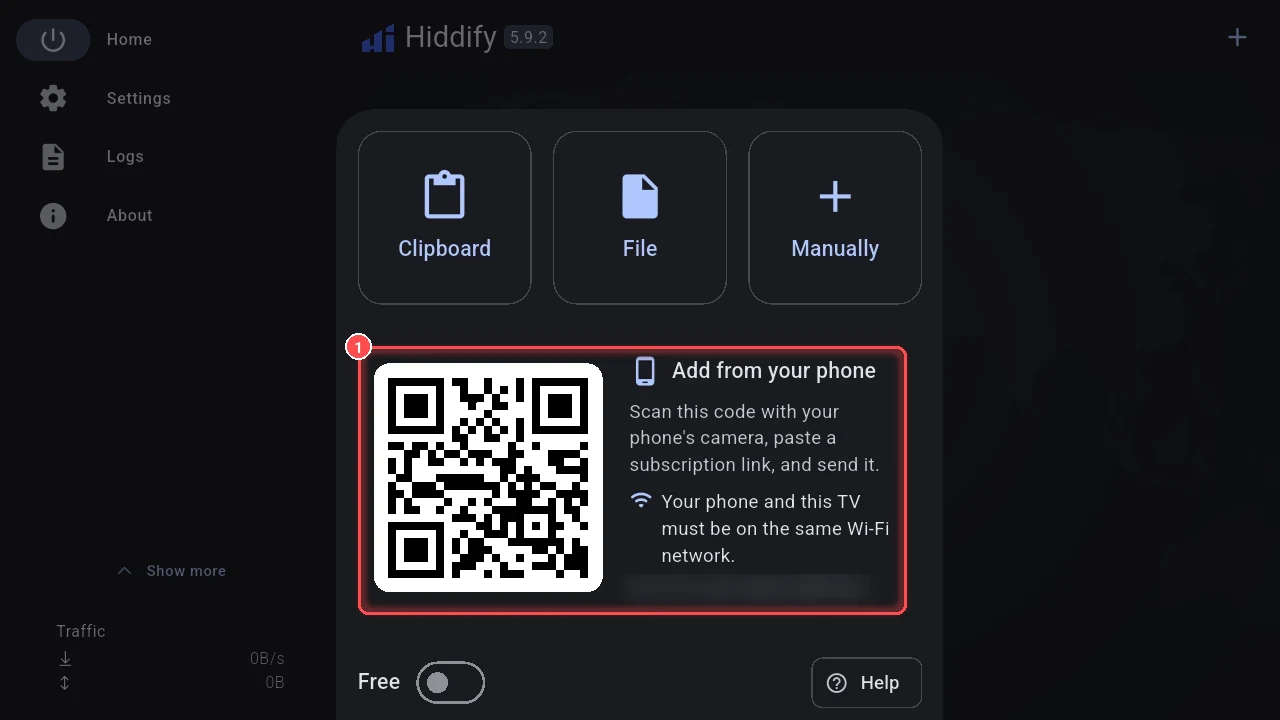
- On the TV, open Hiddify and choose + (Add profile) at the top.
-
The panel shows Add from your phone with a QR code.
-
Scan the code with your phone's camera. A page opens on the phone: Send to Hiddify on your TV, with four short steps. (No camera app? Type the address shown under the code, for example
192.168.1.20:40413/098732, into the phone's browser.)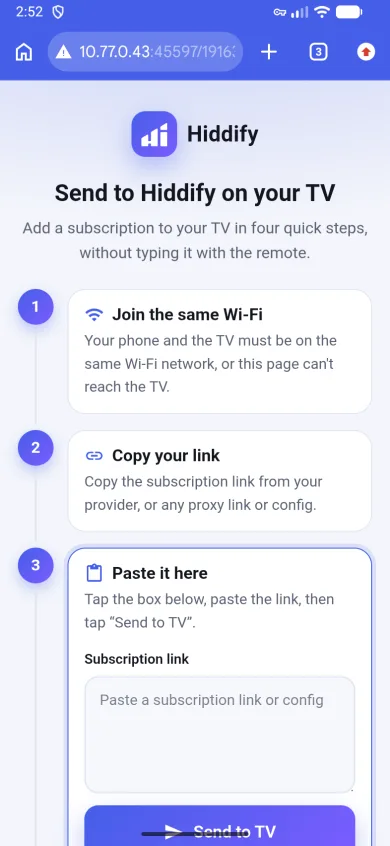
-
On the phone, copy your subscription link (or any proxy link or config), tap the box on that page, paste the link, and tap Send to TV.
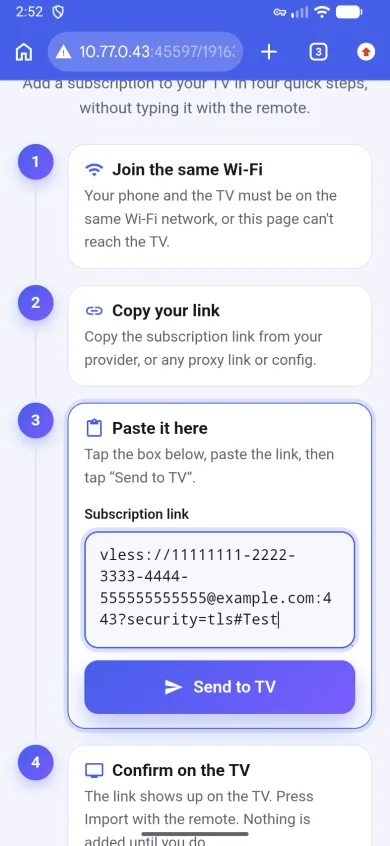
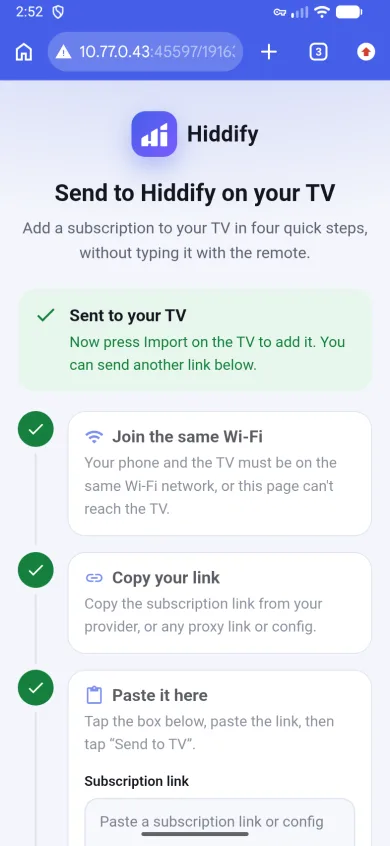
Then a green Sent to your TV box appears at the top and all three steps get a tick. The page stays open, so you can send another link if you want.
-
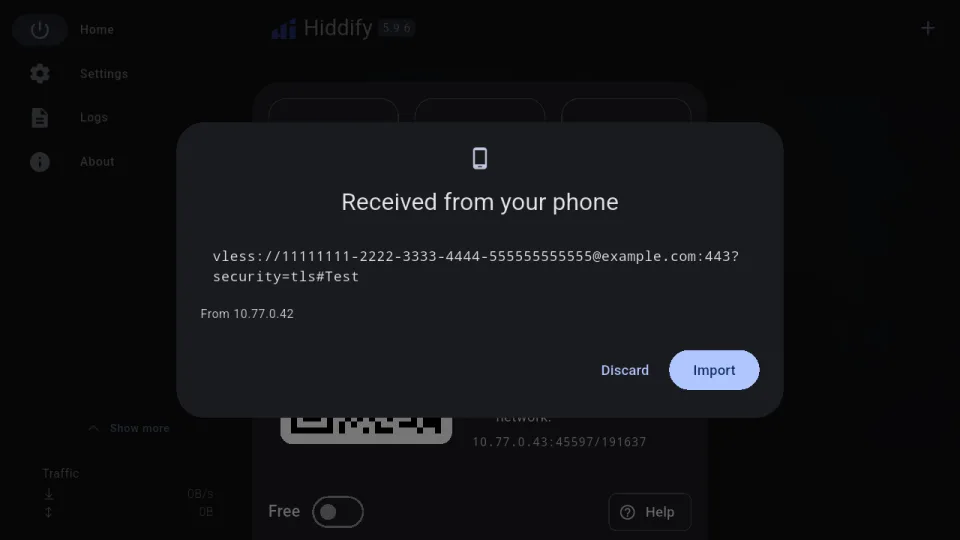
The link shows up on the TV (Received from your phone). Press Import with the remote, or Discard if it is the wrong link. Nothing is added until you press Import.
The profile is on the TV's home page, ready to connect:
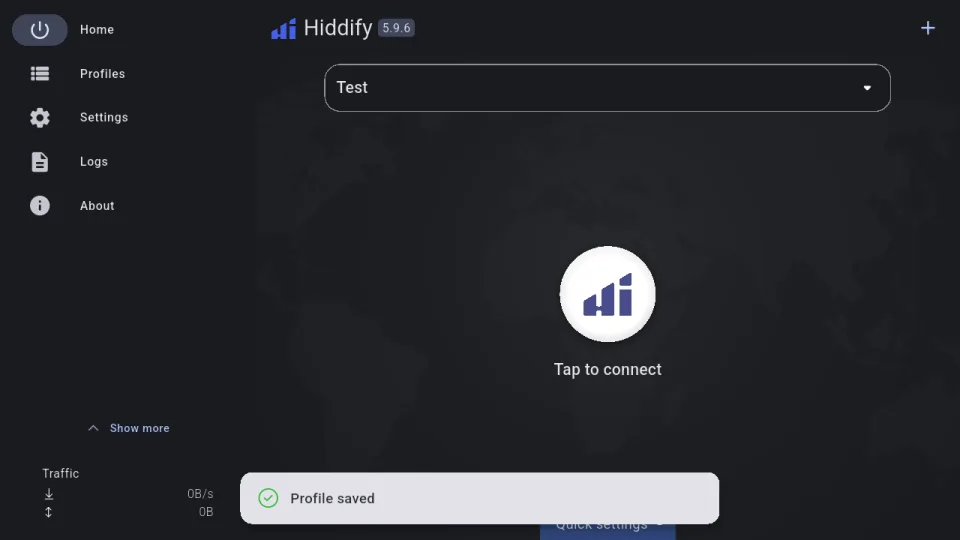
The panel closes after each import. To send another link, open + (Add profile) on the TV again.
Info
- The page on the phone works only while Add profile is open on the TV, and only on your local network. Nothing goes over the internet.
- If the TV says it is not on a local network, connect it to Wi-Fi.
- After too many wrong codes the TV locks the code: close Add profile and open it again for a new one.
From the Hiddify app on your phone
If the profile is already in the Hiddify app on your phone, you don't need to copy the link:
- On the TV, open + (Add profile) so that the code shows.
-
On the phone, open the profile's ⋮ menu and choose Share. The share window has a Send to TV button: tap it and scan the code on the TV.
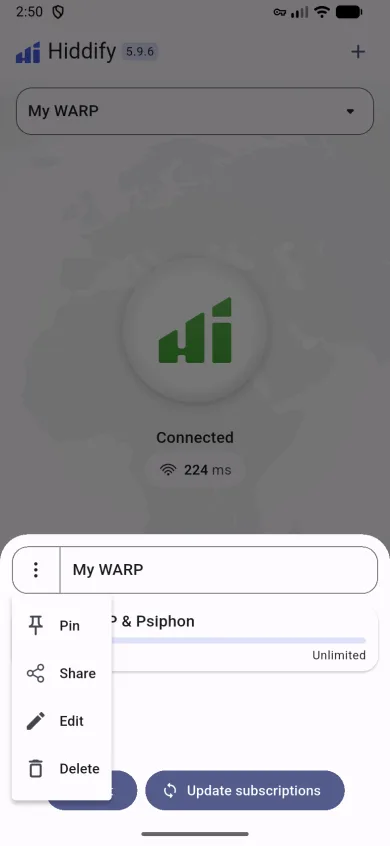
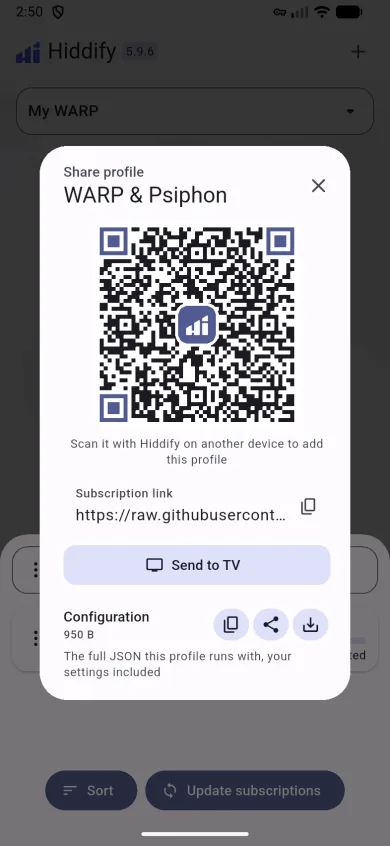
Send to TV is there only for profiles that have a subscription link. For a profile you made from a single config, copy its link and use the page above instead.
-
Press Import on the TV.
If the phone says it couldn't reach the TV, check that both are on the same Wi-Fi. If it says the code expired, open Add profile on the TV again and scan the new code.
Other ways
The Add profile panel on the TV also has Clipboard, File and Manually, and the Free switch for the free profiles.
Everything else works like on Android
The TV runs the same Android app. After the profile is added, connecting, choosing a server, the settings, routing, WARP, DNS and TLS tricks and sharing the connection work as on a phone; only the layout is wider and you move with the remote (arrows and OK). See How to use the Hiddify app for the basics.