Router mode on Linux: Hiddify for your whole network
Router mode turns a Linux computer that routes a network (a gateway, a mini PC between your modem and your Wi-Fi, a Raspberry Pi-like box) into a transparent proxy for every device behind it. Phones, TVs, consoles and IoT devices all go through Hiddify with no app and no settings on them.
Written for Hiddify app 5.9
Router mode is new in Hiddify app 5.9 (5.9.2) and exists only on Linux. On a router with OpenWrt, use Hiddify Core on OpenWrt instead; on a Linux server with no screen, see the core's router mode.
What it covers
- TCP, UDP and ICMP of the devices behind the gateway: web, DNS, QUIC, games, calls and ping.
- DNS on port 53 is answered by Hiddify, so names are not resolved by your ISP.
- Connections from outside keep working: SSH or the web page of the gateway itself, a VPN server on it, and port forwards to a device behind it.
- The gateway's own networks and private addresses stay direct, so the devices still reach the gateway and each other.
What you need
- A Linux computer that already routes your network (the other devices use it as their gateway).
- nftables support in the kernel (standard on current Debian, Ubuntu and Fedora; the
nftcommand itself is not needed) and the nfqueue kernel module,nfnetlink_queue(Hiddify loads it whenmodprobeis there). /dev/net/tun, and administrator (root) permission.
If the nfqueue module is missing, router mode does not start and says so: router mode needs nftables and the nfqueue kernel module .... The message is in Logs.
Turn it on
- Install the Hiddify app on the Linux gateway and add your profile.
-
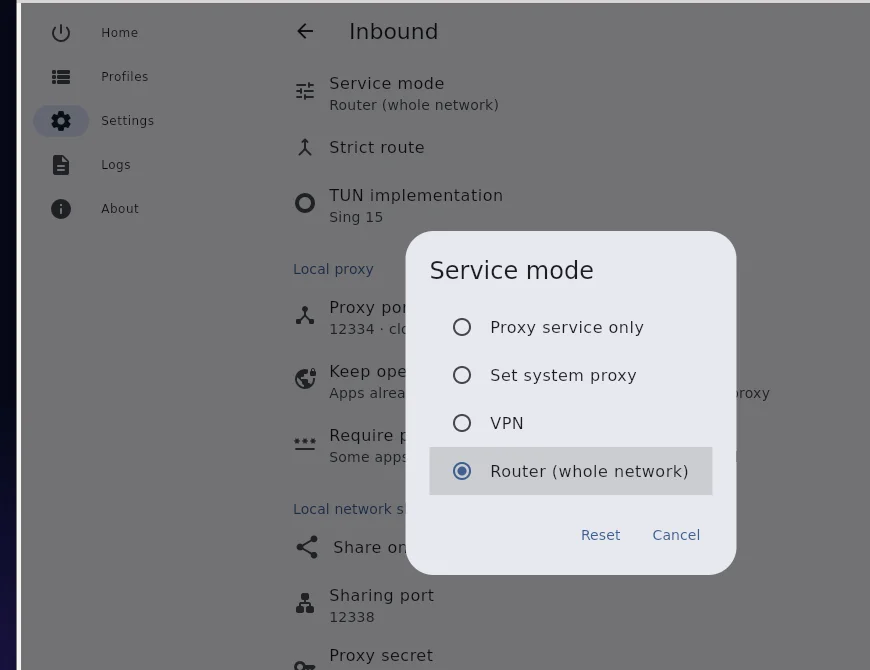
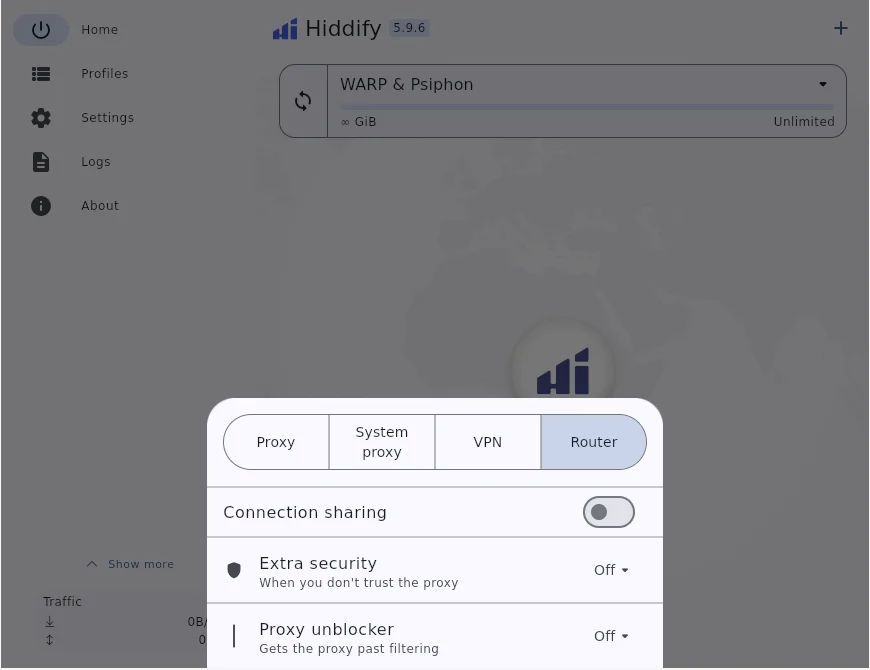
Open Settings → Inbound → Service mode and choose Router (whole network). You can also switch it from Quick settings or the tray menu (Router).
In Quick settings at the bottom of the home page, it is the last of the four buttons: Proxy, System proxy, VPN, Router.
-
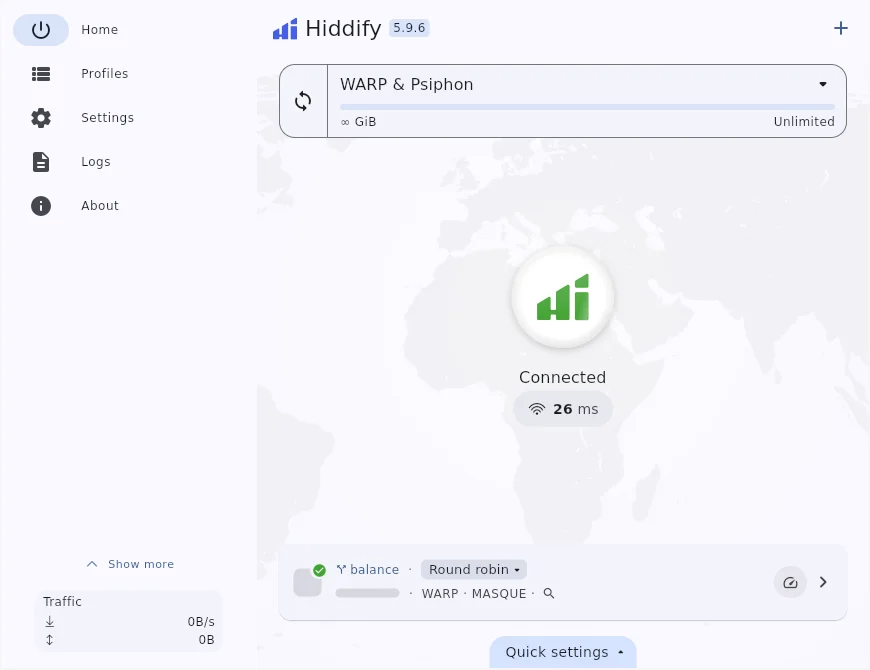
Connect. Like VPN mode, it asks once for administrator permission. When it is connected, the home page shows Connected as usual, and every device behind the gateway now goes through Hiddify.
When it starts, router mode turns on IPv4 and IPv6 forwarding if they are off, and puts forwarding back as it was when you disconnect.
Warning
Every device behind the gateway now goes through your proxy. Keep Bypass LAN on, and send local services direct with routing rules if needed.