Share your connection: local proxy and local network sharing
Besides the VPN, the Hiddify app opens a local proxy that other apps on the same device can use, and it can share the connection with other devices on your home Wi-Fi: a laptop, a TV, a game console. These options are in Settings → Inbound.
Written for Hiddify app 5.9
This page is for Hiddify app 5.9 (5.9.6). Each picture has a Phone and a Computer tab; the options are the same, computers have a few extra ports.
Turn sharing on quickly
On the Home page, open Quick settings and turn on Connection sharing. It is the same switch as Share on local network below.
On a computer (the phone looks the same):
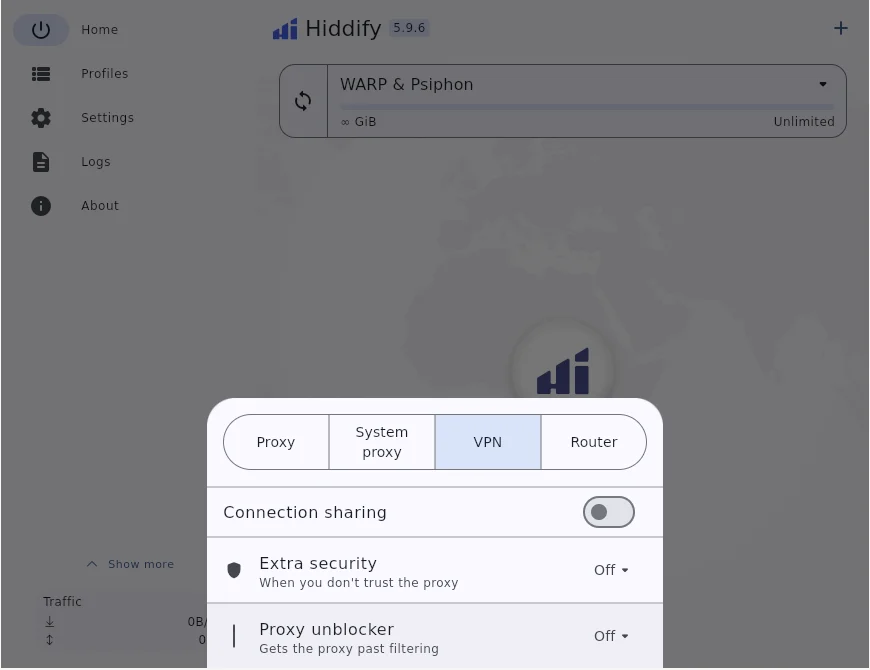
The Inbound page
Open Settings → Inbound.
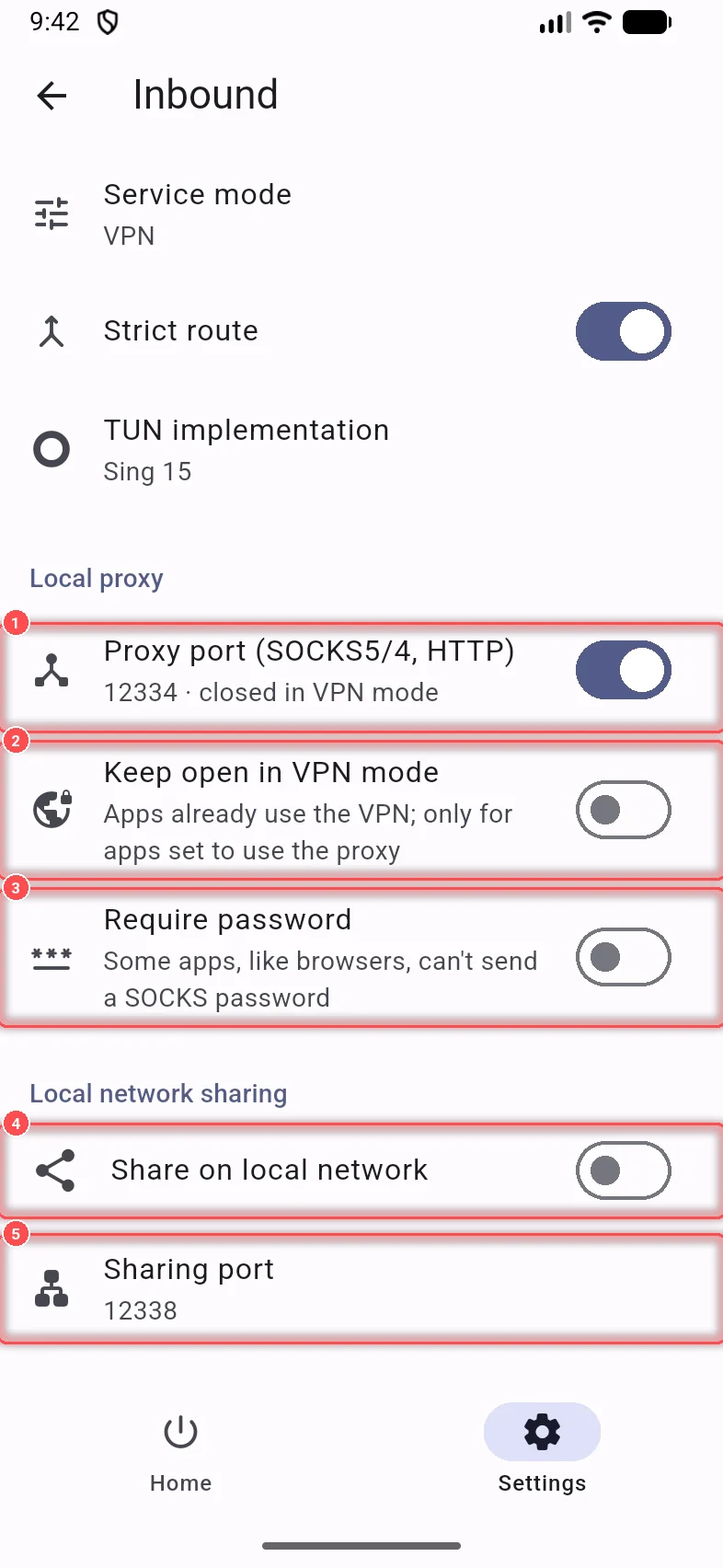
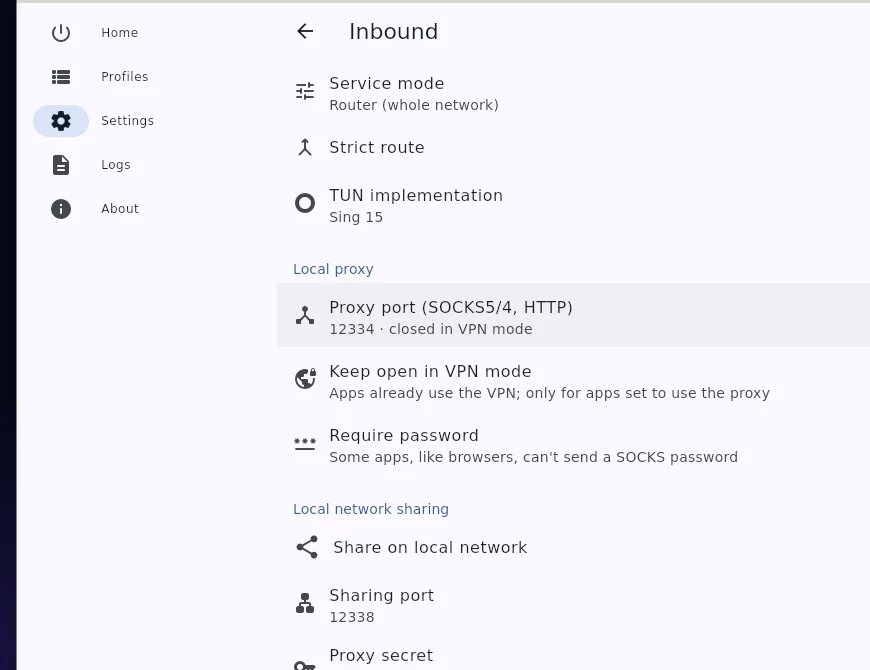
At the top:
- Service mode: VPN (every app goes through Hiddify) or Proxy (only apps set to use the proxy; on computers also Set system proxy, and on Linux Router). See Hiddify on desktop.
- Strict route and TUN implementation: technical VPN options. Leave them as they are.
Under Local proxy:
- Proxy port (SOCKS5/4, HTTP): the local proxy, on port 12334 by default. One port serves SOCKS5, SOCKS4 and HTTP. In VPN mode it is closed (closed in VPN mode), because apps already use the VPN.
- Keep open in VPN mode: keeps the local proxy open in VPN mode too, for apps set to use a proxy.
- Require password: apps must send a user name and password. Some apps, such as browsers, can't send a SOCKS password.
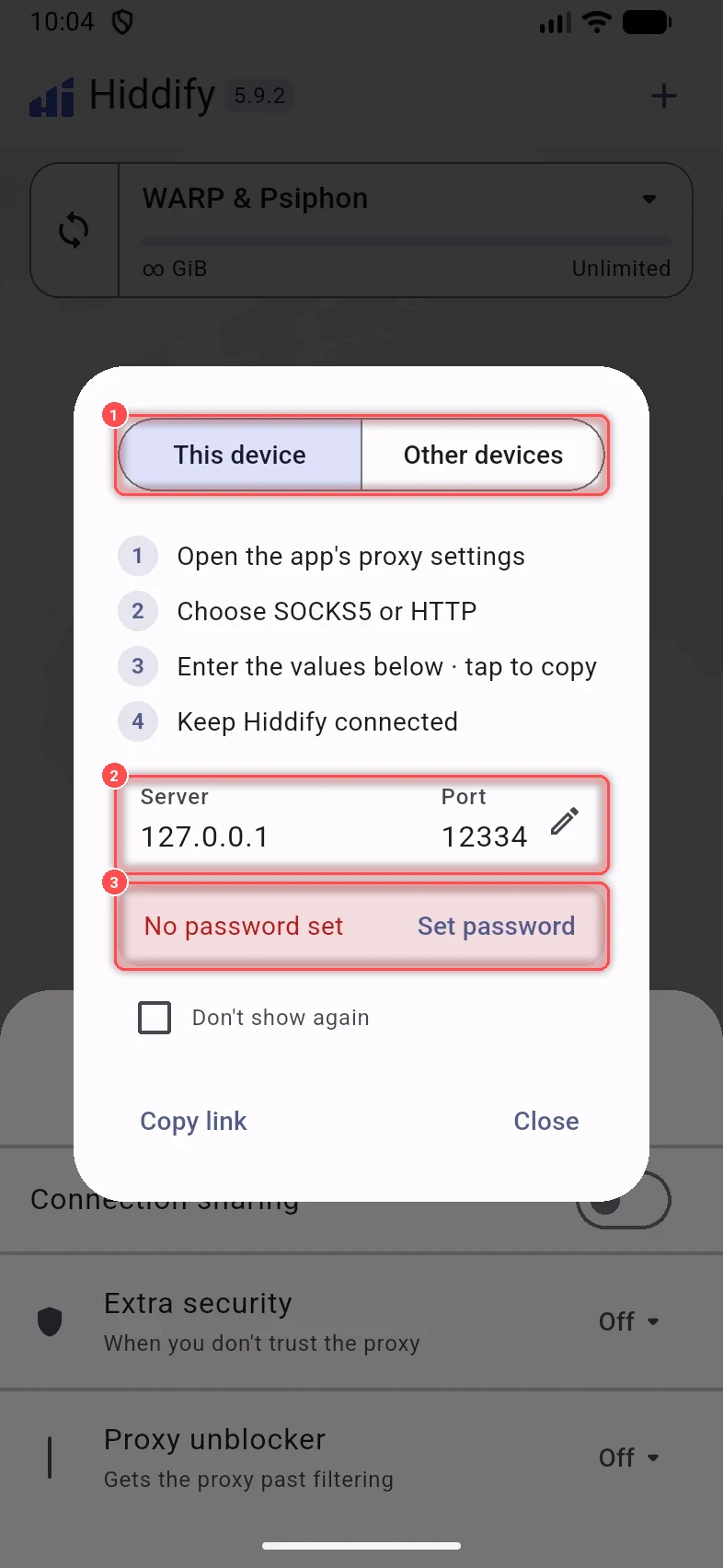
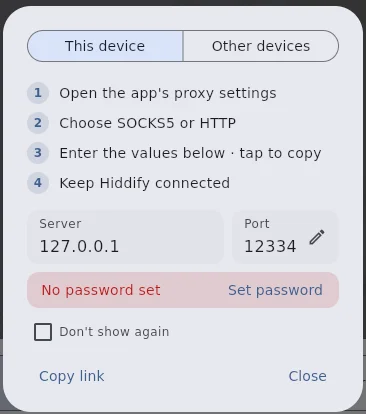
When you switch to Proxy mode (in Quick settings), the app shows how to point an app at the local proxy: This device lists the steps, the Server (127.0.0.1) and Port, and whether a password is set (Set password). The same window opens from the Proxy mode · how to use hint on the Home page.
Under Local network sharing:
- Share on local network: other devices on your network can use the proxy.
- Sharing port: the port for other devices, 12338 by default.
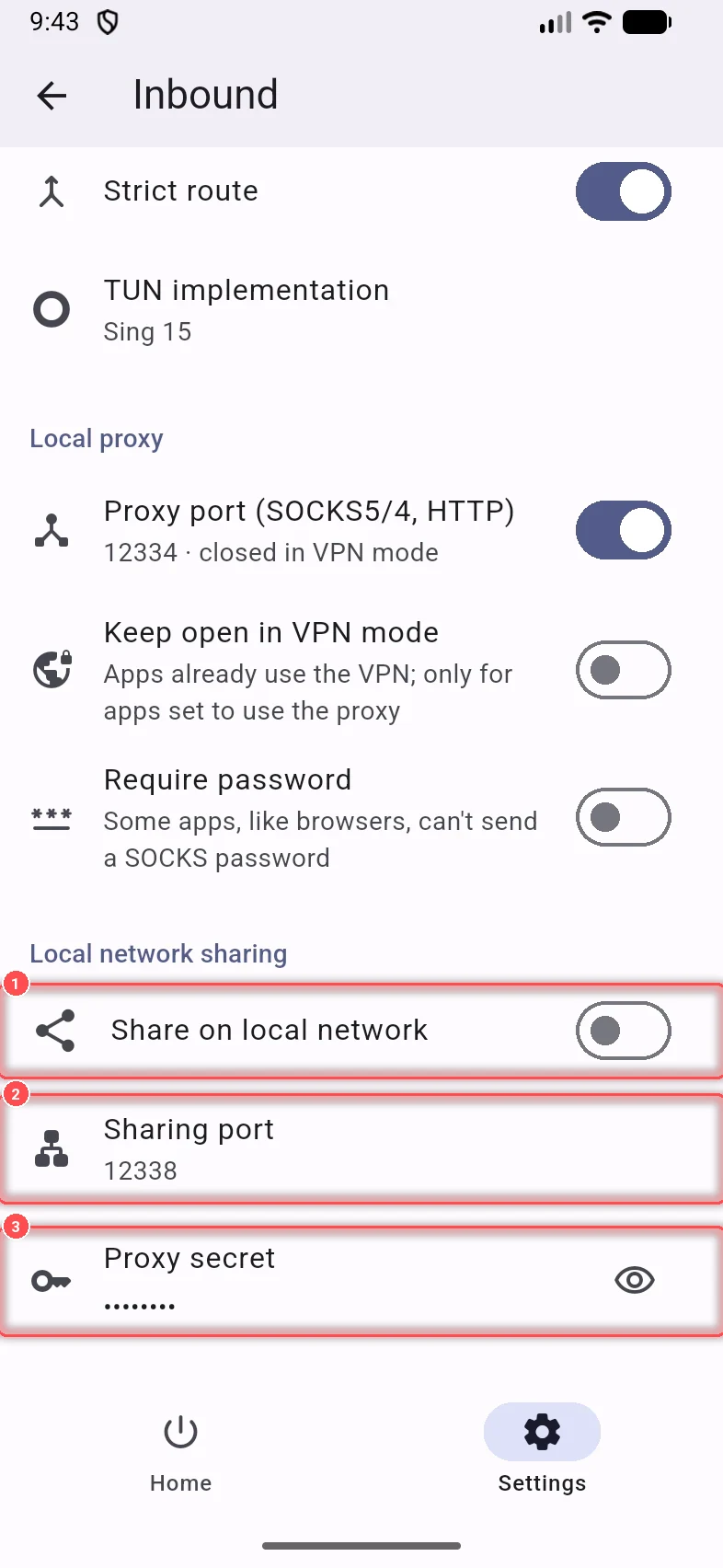
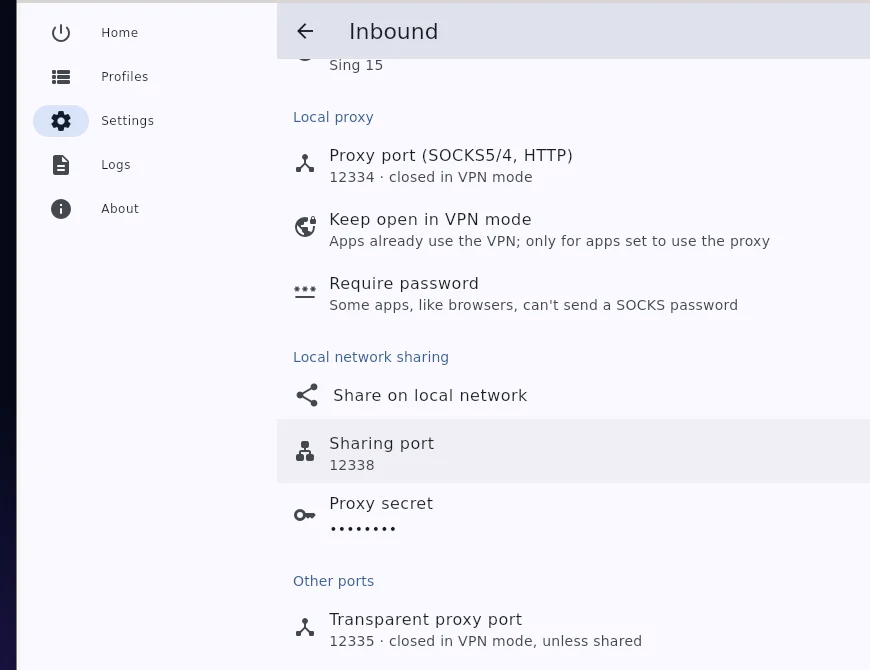
Proxy secret (3) is the password of the proxy. Tap the eye to see it, or Generate new for a new one. Without a secret, any app on this device, and any device on the network while you share, can use the proxy.
Warning
Keep a proxy secret while you share on a network you don't control (a café, an office). Anyone on that network could otherwise use your connection.
Use the shared connection on another device
- Keep Hiddify connected on the sharing device, and put both devices on the same Wi-Fi.
-
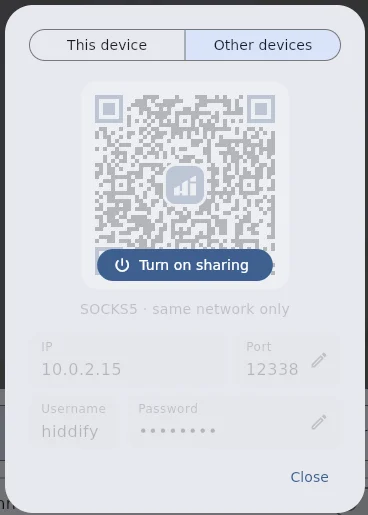
On the sharing device, open the values to enter: switch Quick settings to Proxy (the window opens by itself the first time), or tap the Proxy mode · how to use hint on the Home page. This device shows the values for apps on the same device; Other devices shows the IP, port, user name (
hiddifyby default) and password for the network, with a QR code (SOCKS5 · same network only) and a Turn on sharing button if sharing is off. Tap a value to copy it, or use Copy link or the Telegram link.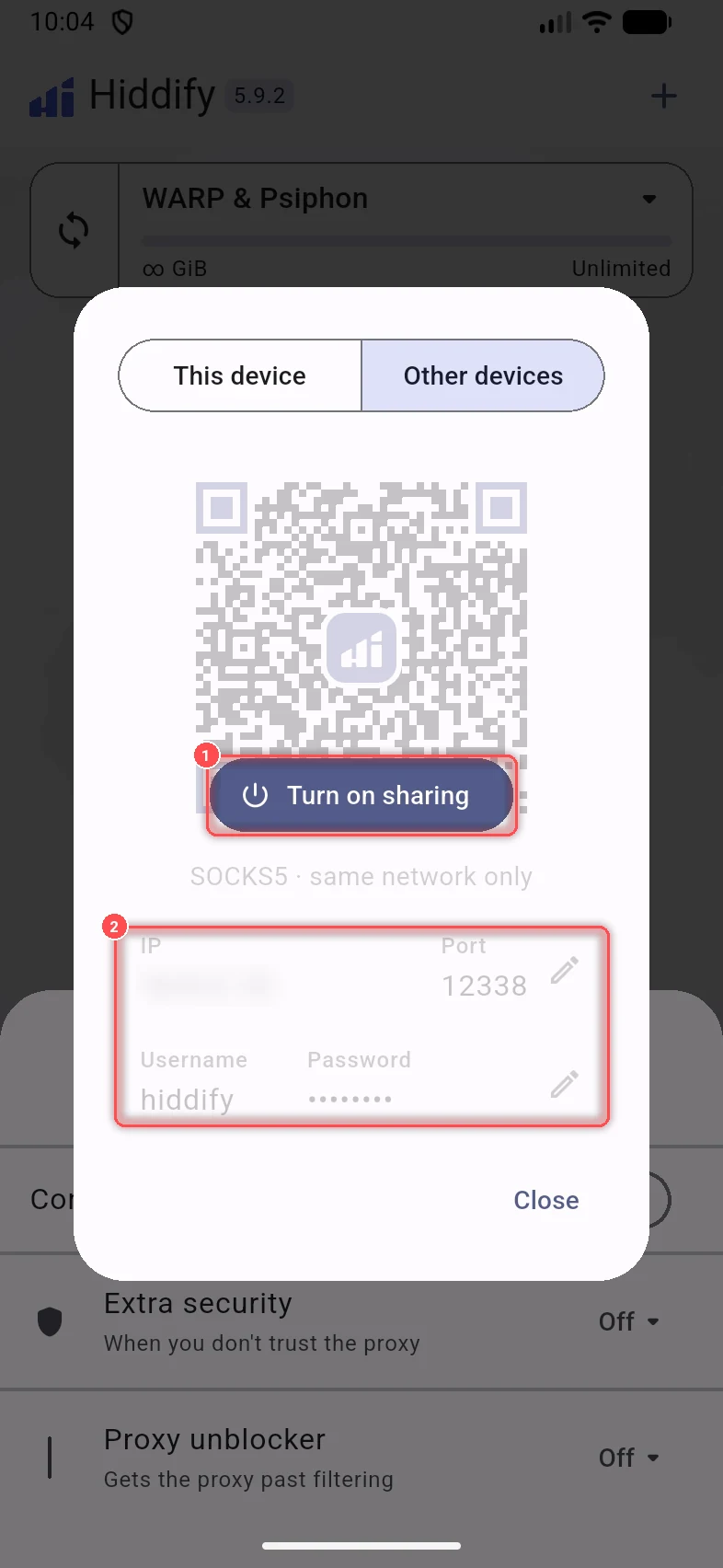
-
On the other device, open the app's or system's proxy settings, choose SOCKS5 (or HTTP), and enter the IP of the sharing device, the sharing port and, if set, the user name and password.
Tip
Telegram has its own proxy setting: the Telegram link fills it in for you.