Automatic config health checks on Hiddify Manager
Written for Hiddify Manager v14.5
The pictures and steps on this page are from Hiddify Manager v14.5.
A user's subscription link has many configs: one for each protocol, transport and domain. If one of them is broken (a wrong template, a core that rejects it, a missing inbound), it does not work for anyone, and users only see "it does not connect".
Config Health finds these configs for you. The panel tests every config of a subscription from the server itself, the same way the apps get it, and shows which ones work.
What it does not test
The test runs on your server, not in Iran. A config that works here can still be blocked by filtering in your users' country. But a config that fails here never works for anyone, so these are the ones to fix first.
The Config Health card
The card is on the Dashboard.
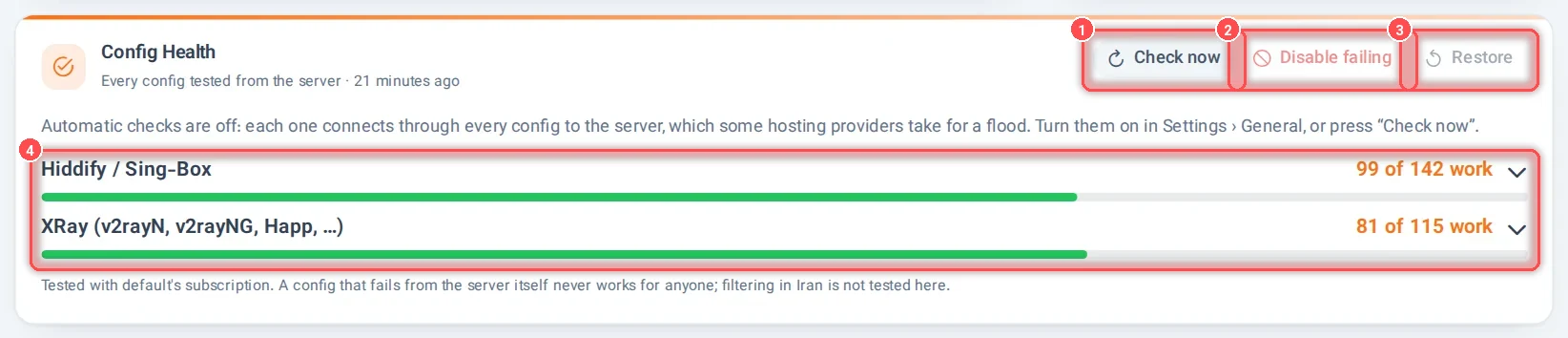
- Check now: runs a check right away. It takes a minute or two; meanwhile the button says Checking…. This button always works, even when the automatic checks are off.
- Disable failing: turns off, for every user, the configs that fail in both kinds of apps. It is greyed out until a check finds such configs (configs that work in at least one kind of app stay on). You see the list and confirm before anything changes.
- Restore: turns back on the configs that Disable failing (or the config tester) turned off.
-
The result for each kind of app:
- Hiddify / Sing-Box: the subscription as the Hiddify app gets it.
- XRay (v2rayN, v2rayNG, Happ, …): the subscription as the Xray apps get it.
For example, 99 of 142 work means 43 configs failed.
The test uses the subscription of one active user (the card says whose) and checks that traffic really gets out to the internet through each config.
See which configs fail
Click a line with failures to open its list.
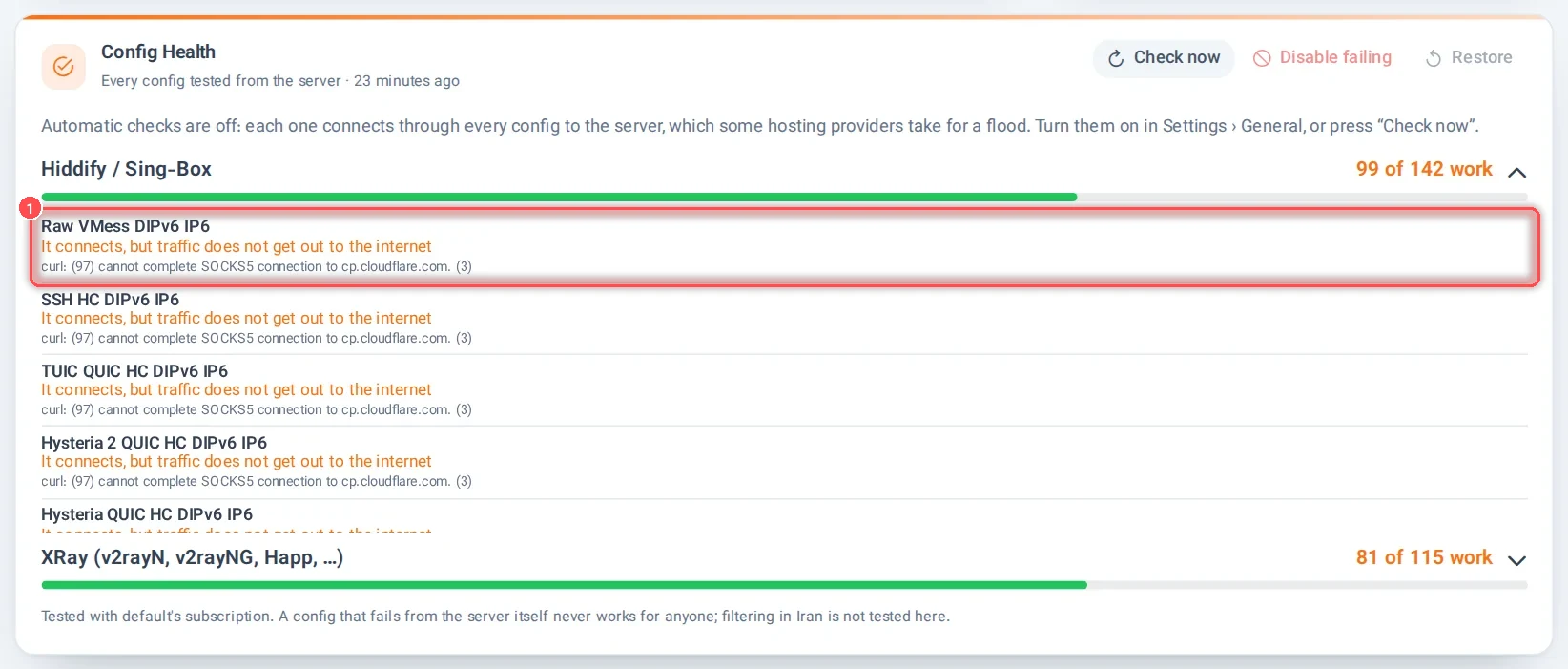
For each config you see its name, the reason in plain words, and the technical message. The reasons:
| Reason | What it usually means |
|---|---|
| It connects, but traffic does not get out to the internet | The config reaches the server, but the server cannot send the traffic on: check the outbound it uses (for example WARP or an IPv6-only exit) |
| No answer in time | The server, or that port or protocol, did not answer |
| The connection was refused | Nothing listens on that port: the protocol or inbound is off or broken |
| The server closed the connection | The server accepted and then dropped it: often a wrong setting of that protocol |
| The TLS handshake failed | A certificate or TLS (SNI, Reality) problem on that domain |
In the picture, the failing configs shown are IPv6 configs (their names end with IP6): on this test server, configs that use IPv6 do not get out to the internet. In such a case, check the server's IPv6, or turn off the IPv6 configs.
If the whole check could not run, the card says why instead, for example: the panel could not open its own subscription because the certificate of the domain is not valid, the domain could not be found, or it did not answer in time. Each message says what to check; Technical details shows the exact error.
Turn on the automatic checks
By default only Check now works. To check automatically:
- Open Settings → General Settings. This is an advanced setting: click Show advanced settings if you do not see it.
- Turn on Automatic config health checks (1).

- Save.
Then the panel checks after every start of the panel and every 6 hours. A config that fails is tested again after a short time, so a moment's hiccup is not reported. When configs fail in two checks in a row, the super admins get a message from the Telegram bot (if the bot is set up), and the Dashboard shows a notice such as 12 of 142 configs do not work from the server.
Why it is off by default
Each check starts a client for every config and connects through it to your own server: on a big subscription that is hundreds of connections in a few minutes. Some hosting providers take this for an attack (a flood) and can suspend the server. Turn the automatic checks on only if your provider is fine with that; otherwise use Check now when you need it.
Good to know
- After you change protocols, domains or the proxy templates, press Check now to see that every config still works.
- To test any subscription link (also one from another panel) from the server, use Tools → Config Tester.