Inbox, free test and messages to users on Hiddify Manager
Written for Hiddify Manager v14.5
The pictures and steps on this page are from Hiddify Manager v14.5.
The Inbox page brings together everything that goes through your Telegram bot:
- Free test: a link you share; whoever opens it in Telegram can ask for a free test account, and gets it automatically or after you approve it.
- Conversations: messages people send to your bot, which you can read and answer from the panel.
- Send Message: a message from you to your users in Telegram.
You need the Telegram bot first
All of this works through the panel's Telegram bot. If it is not set up, the page asks you to do it first. See how to set up the Telegram bot.
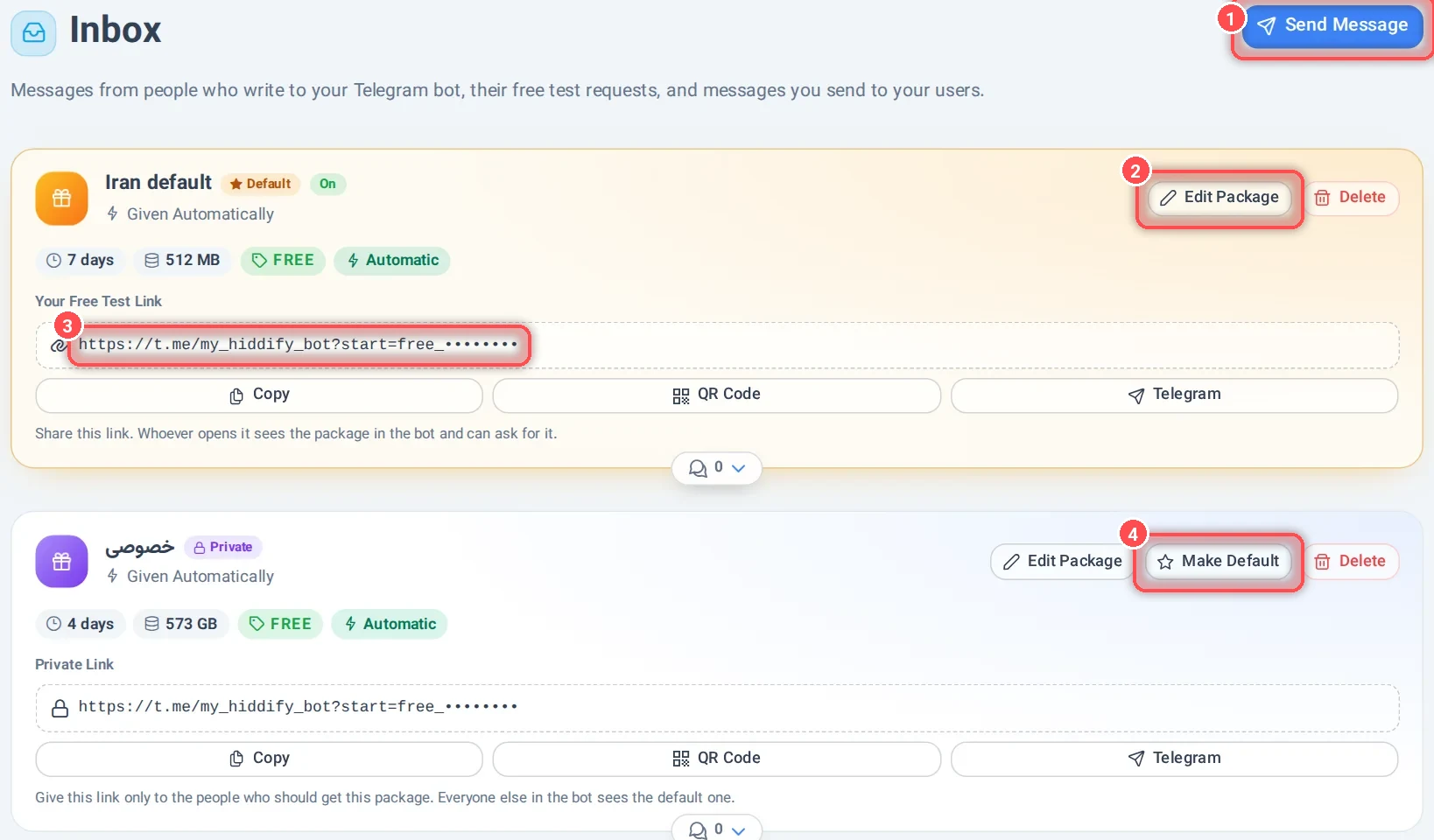
Free test packages
A free test package says how much a free test gives: how many days and how much data. You can have several packages:
- The Default package is the one everyone in the bot sees. It has Your Free Test Link (3): share it in your channel, group or website.
- Every other package is Private: it has its own Private Link, and only the people you give that link to can ask for it. Everyone else in the bot still sees the default package. Make Default (4) makes a private package the default.
Under each link: Copy, QR Code (to show or print the link as a QR code) and Telegram (opens the link in Telegram).
Make or edit a package
Click Edit Package (2) on a package, or Add Package at the bottom of the page.
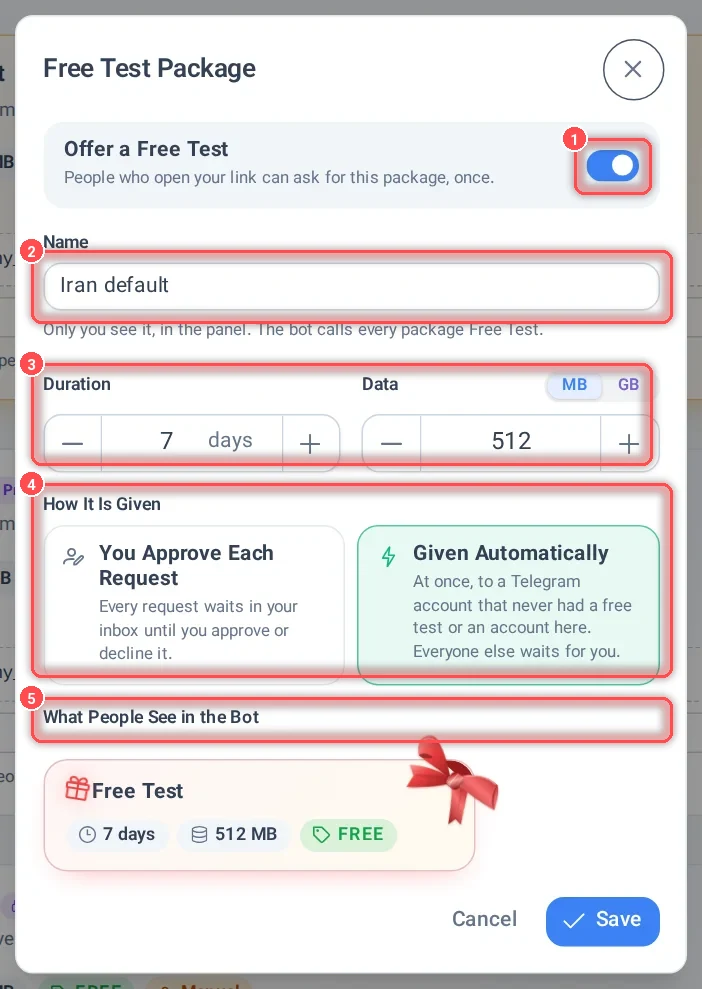
- Offer a Free Test: on or off. When it is off, people who open your link are told the free test is not available (they can still write to you).
- Name: only you see it, in the panel. In the bot, every package is called Free Test.
- Duration in days and Data in MB or GB.
- How It Is Given:
- You Approve Each Request: every request waits in your Inbox until you approve or decline it.
- Given Automatically: the account is made at once, but only for a Telegram account that never had a free test or an account on your panel. Everyone else waits for your approval. This stops the same person from taking free tests again and again.
- What People See in the Bot: a preview of the package as it appears in Telegram.
Click Save.
A person can get the free test once. If you have reached your user limit (for admins with a limit), requests wait until there is room.
Sub-admins have their own packages and links. A sub-admin can also choose Use My Parent's Package; then the package says set by the parent admin.
What happens in Telegram
- The person opens your link. The bot shows the package (days and data) and a button.
- With Given Automatically, they tap Get my free test and their account arrives in the chat in a few seconds.
- With approval, they tap Request the free test. The request appears in your Inbox, and the bot also sends it to you in Telegram with Approve, Decline and Reply buttons, so you can answer from either place. When you approve it, the account is sent to them in Telegram. If you decline it, they are told, and they can still write to you.
New messages from people also reach you in Telegram, with a Reply button.
Conversations
When someone opens your free test link or writes to your bot, a conversation appears on the Inbox page. Open it to:
- read the messages and answer: your answer goes to them in Telegram;
- for a free test request: Approve or Decline. The request shows whether it is the person's first time or whether they already had a free test, or have an account;
- Give a Free Test to someone who did not ask for one;
- Delete Conversation (the person's account stays).
You can filter the list by Unread and Requests.
Send a message to your users
Click Send Message (1 in the first picture).
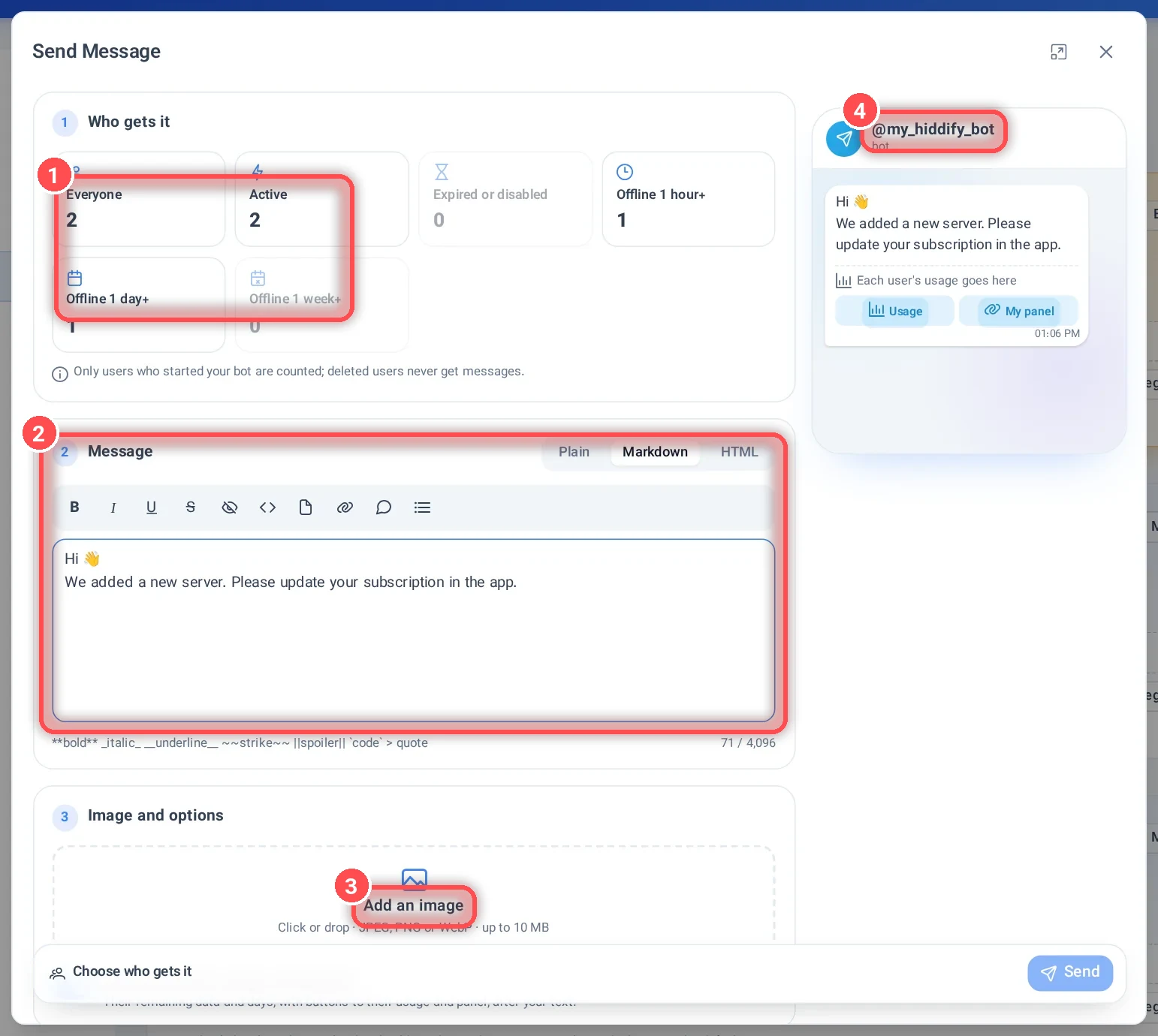
- Who gets it: Everyone, Active, Expired or disabled, or the users who have been offline for more than an hour, a day or a week. The number on each choice is how many users will get it. Only users who started your bot are counted, because Telegram lets a bot write only to them.
- Message: write it as Plain text, Markdown or HTML. The toolbar adds bold, italic, links, code, quotes, spoilers and lists. Up to 4096 characters.
- Image and options: add one image (JPEG, PNG or WebP, up to 10 MB). Add each user's usage and buttons adds each user's remaining data and days after your text, with buttons to their usage and their page.
- The preview shows the message as users will see it in Telegram.
Click Send and confirm. The message cannot be taken back. A progress bar shows how many were delivered and why some were not (for example, a user who blocked the bot).
To a few users or admins
On the Users page, select some users and send the message only to them. On the Admins page you can do the same for admins (only admins with a Telegram ID who started your bot get it).