Routing in the Hiddify app: per-app routing, regions and your own rules
Routing decides which traffic goes through the proxy, which goes straight to the internet (direct), and which is blocked. This page explains every option of Settings → Routing.
Written for Hiddify app 5.9
This page is for Hiddify app 5.9 (5.9.2). The screenshots come from Android. App-based routing is on Android only; the rest is the same on every platform.
Open the routing settings
Open Settings and tap Routing.
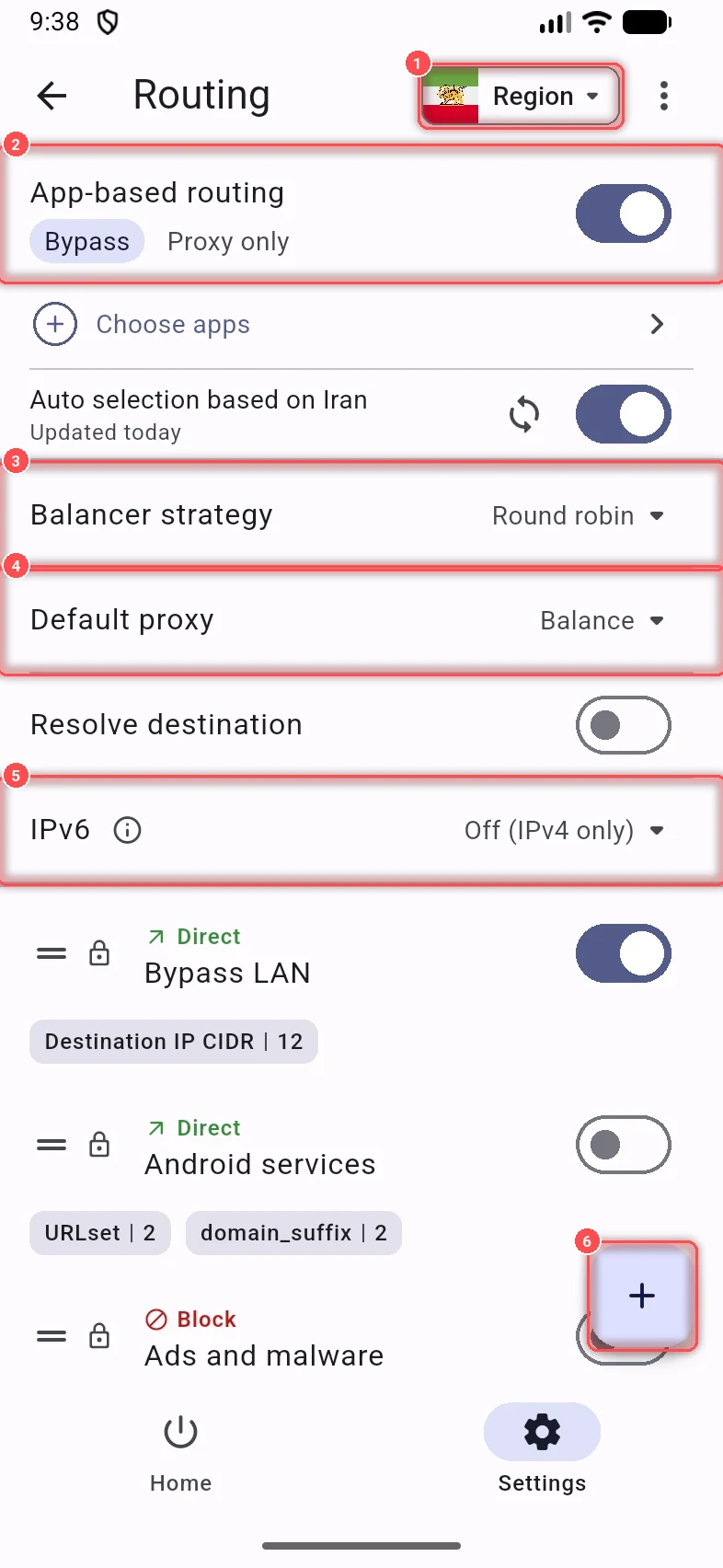
- Region: the country you are in. It decides which sites go direct (the built-in rule Sites in …) and which apps the auto selection picks. Choices: Iran, China, Russia, Afghanistan, Indonesia, Türkiye, Brazil and Other.
- App-based routing (Android): choose apps that skip the VPN, or the only apps that use it.
- Balancer strategy: how traffic is spread when your profile has several servers.
- Default proxy: which server is used until you pick one yourself.
- IPv6: whether IPv6 is used at all.
- Add rule (the + button): make your own rule.
App-based routing (Android)
Turn on App-based routing, then pick a mode:
- Bypass: the apps you choose do not use the VPN. Everything else does. Good for banking apps and local apps that refuse foreign IPs.
- Proxy only: only the apps you choose use the VPN. Everything else goes direct.
Tap Choose apps to pick the apps. Hide system apps keeps the list short, and the search button finds an app by its name.
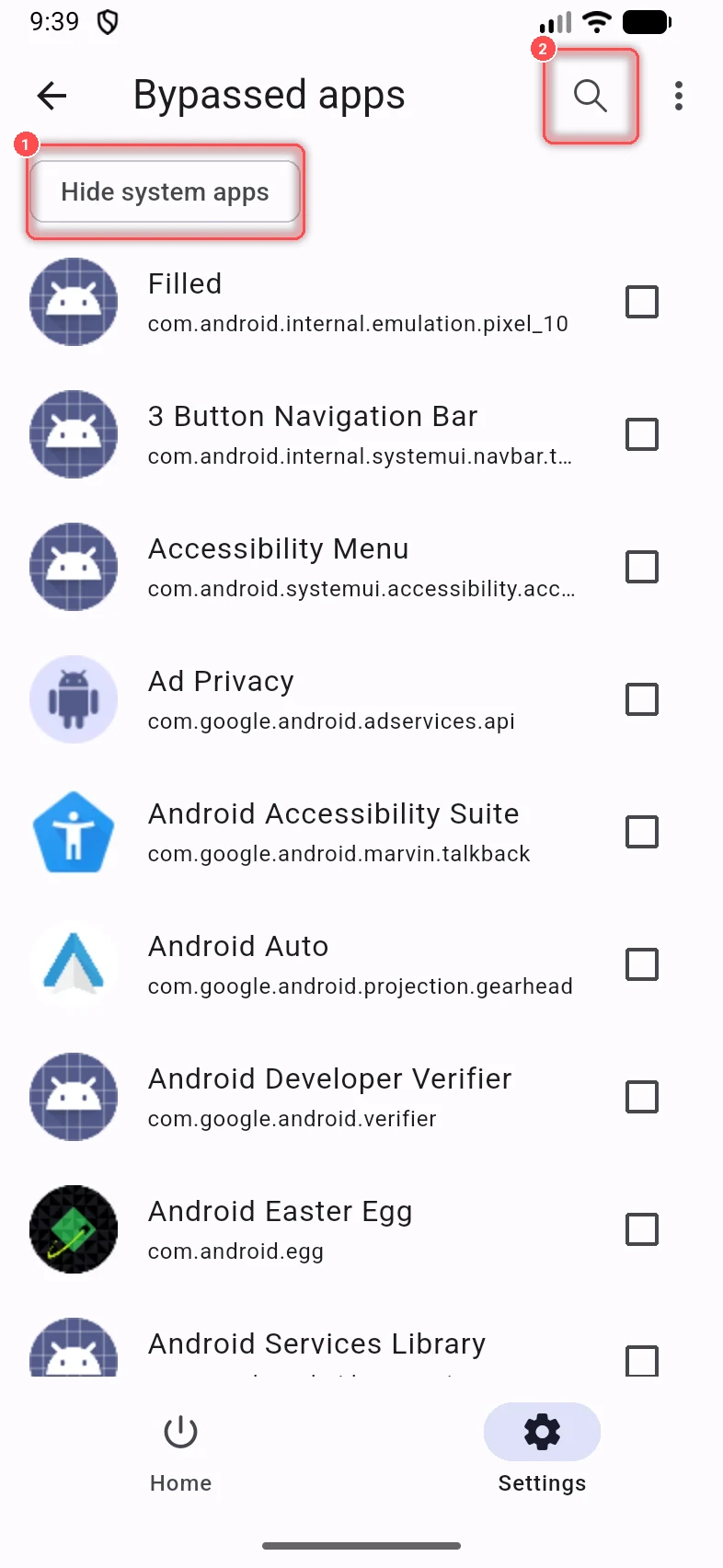
Auto selection based on (your region) adds a ready list of apps for your region to the list of the current mode by itself (for Bypass: apps that usually need to stay direct, such as local banking apps), and keeps it up to date. Apps you removed by hand stay removed. Tap the refresh button next to it (Update now) to update the list at once. Apps added this way have an Auto tag. The ⋮ menu of the app list can import, export or clear your selection.
Tip
An app that is not in the VPN does not follow any routing rule (the app list shows Outside the VPN · rule won't apply).
Per-app routing on computers (Windows, macOS, Linux)
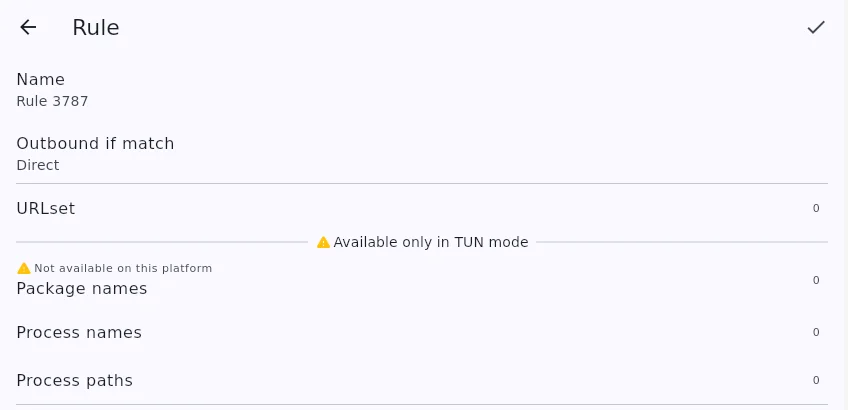
On a computer there is no app list to tick. You choose apps with a routing rule, by the name of their program file. This works only in VPN mode (the editor shows Available only in TUN mode).
- Open Settings → Routing and click + (Add rule).
- Set Outbound if match: Direct to keep the app outside the VPN (for example a game or a local banking program), Proxy to send it through the VPN, or Block.
- Click Process names, then +, type the program's file name and click OK. On Windows it ends in
.exe, for examplechrome.exeorTelegram.exe; on Linux and macOS it is the program's name, for examplefirefox. Add as many names as you need. - Click the ✓ at the top to save the rule.
How do I find the file name?
On Windows, open Task Manager, right-click the app and choose Go to details: the highlighted name (for example chrome.exe) is the one to type. Process paths does the same with the full path, for example C:\Program Files\Google\Chrome\Application\chrome.exe, when two programs have the same name. Package names is for Android only.
Balancer strategy
When the app balances traffic over several servers, it chooses a server for each connection:
- Round robin: each connection uses the next server, so sites may see your IP change.
- Consistent hash: each site always uses the same server.
- Sticky session: each site keeps a random server until you reconnect.
If sites log you out or ask for a captcha again and again, try Consistent hash or Sticky session.
Default proxy
Until you choose a server on the proxies page, the app uses:
- Lowest ping: the fastest one.
- Balance: connections are spread over all of them (with the balancer strategy above).
- First proxy: the profile's first server.
Resolve destination and IPv6
- Resolve destination: the app finds the IP address of each site before it sends the traffic. Leave it off unless you know you need it.
- IPv6: Off (IPv4 only) is the default, because most proxies have no IPv6 at their exit, and a connection the proxy cannot carry breaks sites like Google and YouTube. On, IPv4 first and On, IPv6 first use IPv6 only through a proxy that was tested to carry it. IPv6 always stays inside the VPN. Tap the ⓘ next to IPv6 for the full explanation.
Built-in rules
Below the options is the list of rules. The app checks them from top to bottom, and the first rule that matches decides. Built-in rules have a lock icon; you can turn each one on or off:
- Bypass LAN: your home network (router, printer, TV) stays direct.
- Android services (on other platforms: Apple services, Microsoft services or Linux updates): system services go direct.
- Ads and malware: blocked.
- Sites in (your region): local sites go direct.
A built-in rule can't be changed. To change one, Duplicate it and edit the copy. Drag the handle (≡) to change the order.
Add your own rule
Tap + (Add rule). A rule says which traffic (the conditions) and where it goes (Outbound if match).
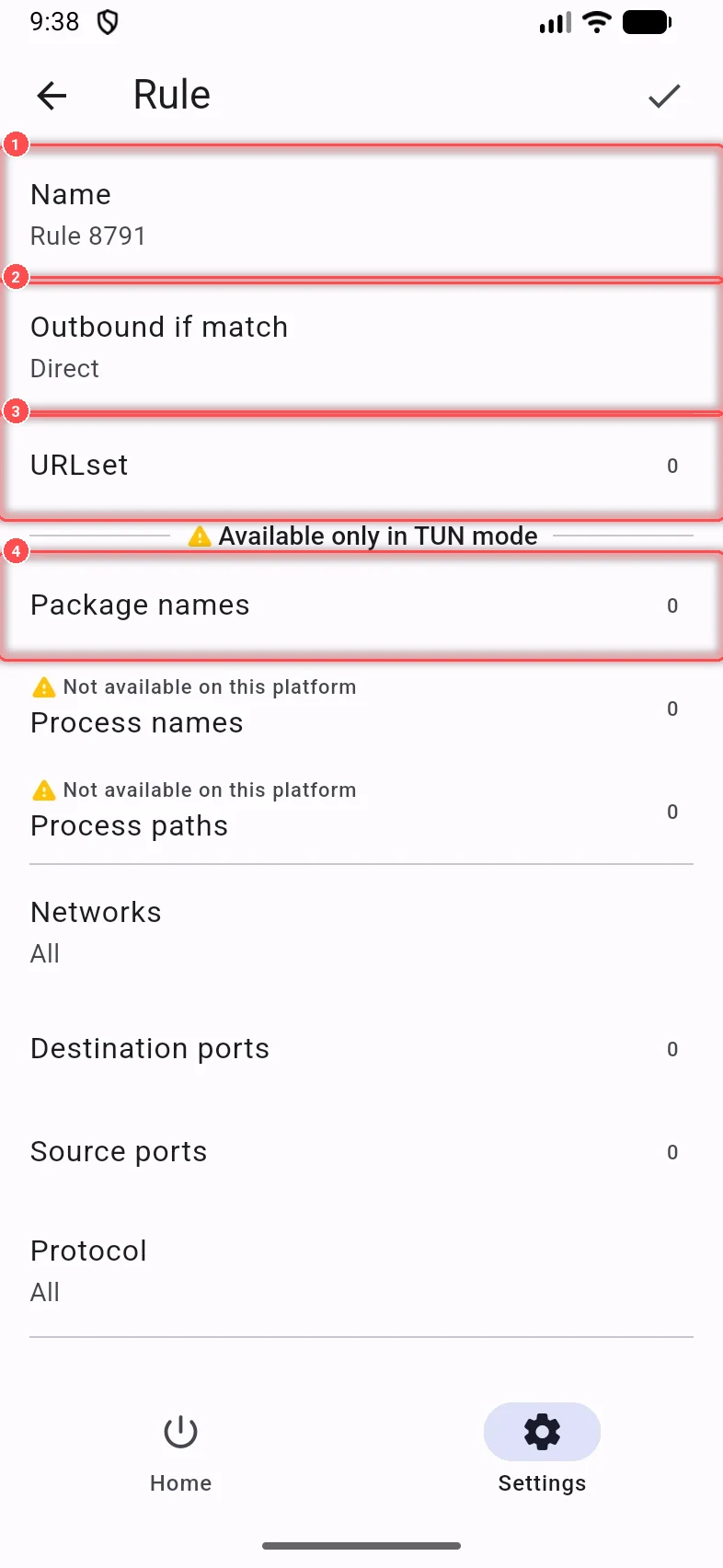
- Name: a name for the rule.
- Outbound if match: Proxy, Direct, Direct with fragment (direct, with the TLS fragment trick) or Block.
- URLset: ready lists of sites (rule sets) by URL.
- Package names (Android, VPN mode only): apps by their package name. Process names and Process paths are the same on computers, for example
chrome.exeor/usr/lib/chromium/chromium.
Further down you can also match Networks (TCP or UDP), Destination ports and Source ports (for example 443 or 1:65000), Protocol (TLS, HTTP, QUIC, STUN, DNS, BitTorrent), Destination IP CIDR and Source IP CIDR (for example 10.0.0.0/24), and sites by Domain, Domain suffix (for example .ir), Domain keyword or Domain regex. Fill in only what you need; a rule matches when all the filled fields match. Tap the ✓ at the top to save.
Example: send every .ir site direct
Add a rule, set Outbound if match to Direct, and under Domain suffix add .ir.
The ⋮ menu of the Routing page can Import rules from the clipboard or a file, Copy rules or Save rules to file (to move them to another device), and Reset to default rules.
Warning
Only import rules from a source you trust: rules decide where your traffic goes.