Import, export and reset settings, and edit a profile
This page shows how to save all your Hiddify app settings to a file (to move them to another device, or to keep a copy), how to bring them back or reset them, and how to edit a profile.
Written for Hiddify app 5.9
This page is for Hiddify app 5.9 (5.9.2). The screenshots come from Android; the menus are the same on every platform.
Export your settings
Open Settings and tap ⋮ at the top, then Export.
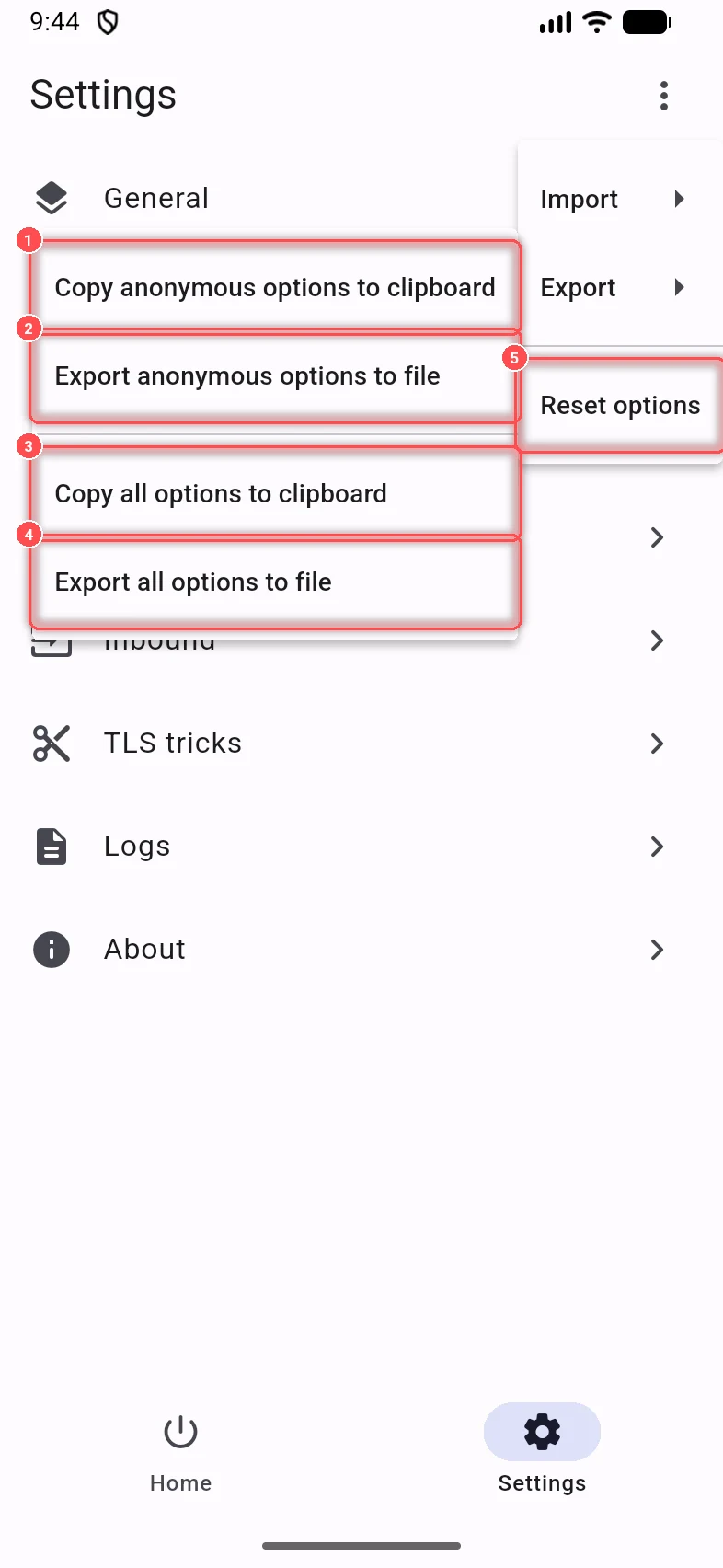
- Copy anonymous options to clipboard
- Export anonymous options to file
- Copy all options to clipboard
- Export all options to file
- Reset options: puts every setting back to its default (profiles are not touched).
Anonymous options are all your settings without your private ones: the WARP+ license keys of the chain (Extra security and Unblocker) and the local network sharing password. Use them when you share your settings with someone, or attach them to a question in a support group. All options include those too: use them only for your own devices.
The file is JSON. It holds the app's settings, not your profiles: add your profiles on the new device separately (or share them, see below).
Tip
HiddifyCli can run with these settings: export all options to file and pass the file with -d.
Import settings
Settings → ⋮ → Import → Import options from clipboard or Import options from file. The app asks first: importing overwrites all your settings with the imported values.
Edit a profile
On the Home page, tap the profile card (or View all profiles), then ⋮ next to a profile:
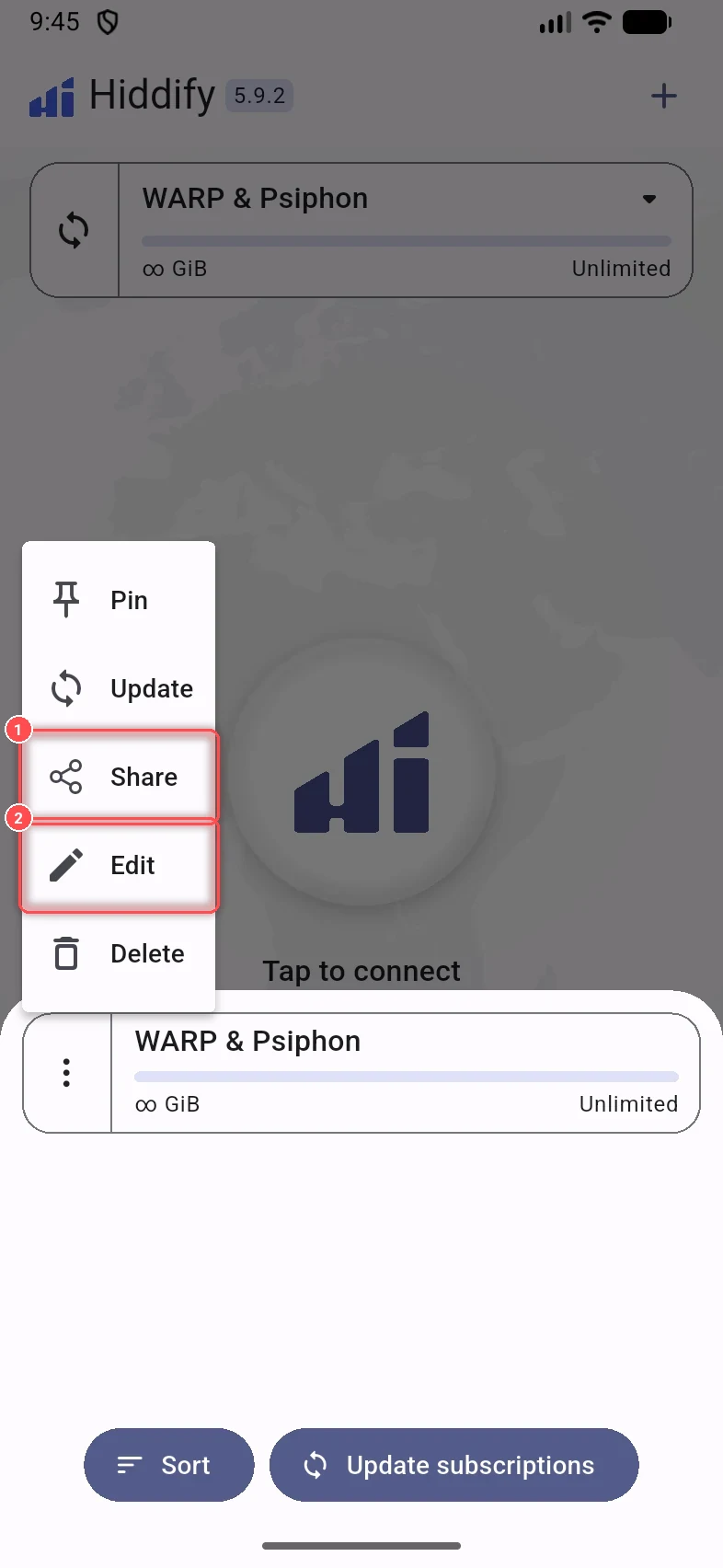
- Pin: keeps it at the top of the list.
- Update: downloads the latest servers of the subscription now.
- Share (1): as a QR code or subscription link, the full configuration (JSON, your settings included), or Send to TV (see Hiddify on Android TV).
- Edit (2): opens the profile page below.
- Delete: removes it (you can't undo this).
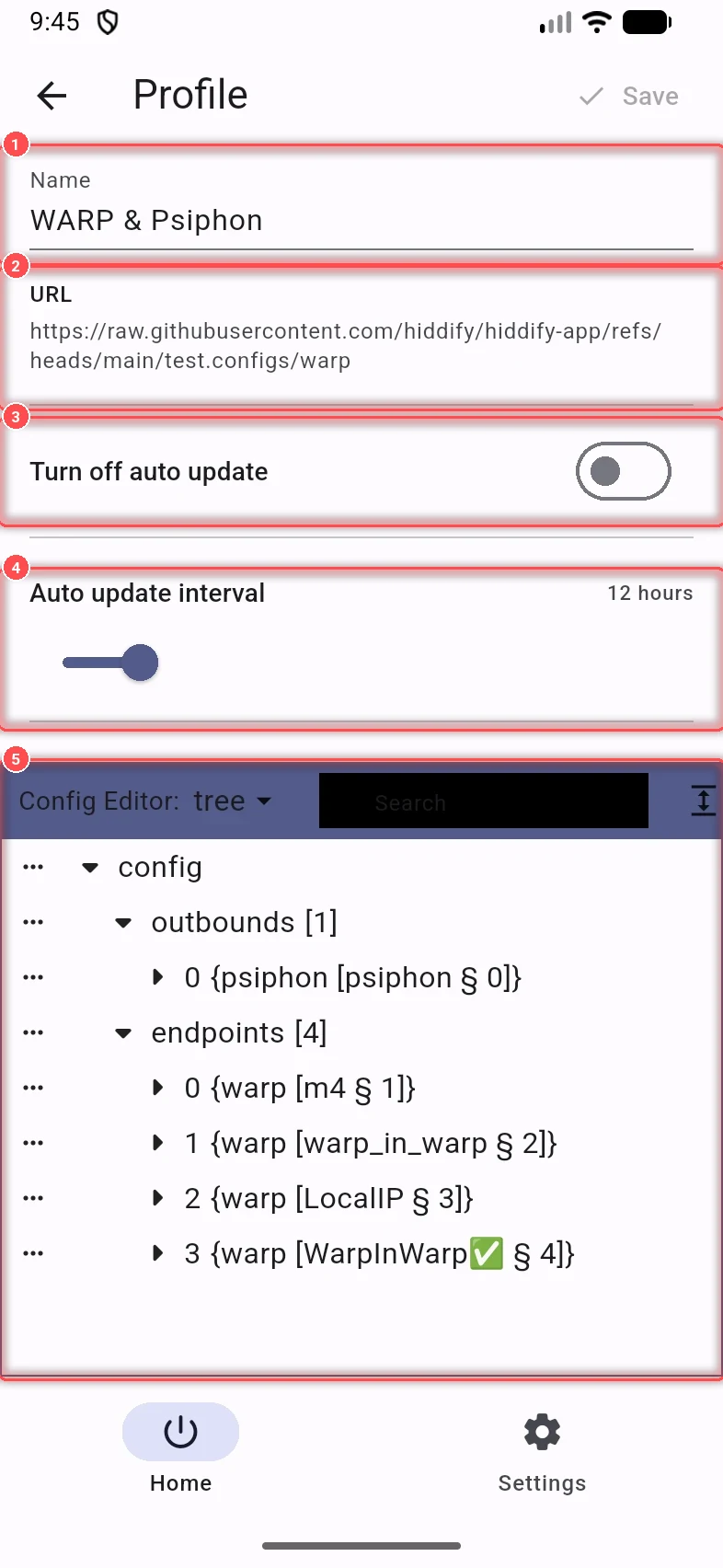
- Name: the name shown in the app.
- URL: the subscription link the profile updates from.
- Turn off auto update: stops automatic updates of this profile.
- Auto update interval: how often it updates (for example every 12 hours).
- Config Editor: the profile's configuration, as a tree or as text, with search. Change it only if you know the config format; a wrong edit can stop the profile from connecting.
Tap Save at the top to keep your changes.
On computers, the profile page also has Administrator permission (Ask each time, Always use administrator permission or Always continue without administrator permission): see Hiddify on desktop.
The profiles list (Home → profile card) also has Sort (alphabetically or by last update) and Update subscriptions (all at once). Subscriptions that have expired, ran out of traffic or keep failing to update can be removed together with Remove inactive subscriptions.